Master Transcriber
Master Transcriber cover: the app logo and the words Master Transcriber, interview transcription for macOS, timecode, speakers, translation, 100 % local and offline, over an indigo waveform

Master Transcriber · free for macOS · beta

Your interviews, transcribed offline.

Master Transcriber turns audio and video interviews into transcripts with the source timecode, with automatic speaker detection, translation and clip export. Everything runs on your Mac: no internet connection, no account, nothing uploaded.

Version 0.2 beta · macOS 15+ · Apple Silicon · 108 MB · PDF manual included

Works without internet

Privacy

100 % local. Zero cloud.

Your recordings never leave your computer. Once a transcription model is installed, Master Transcriber works on a plane, on location or in a newsroom with no network.

No internet connectionNo accountNo uploadNo subscription

Whisper on your Mac

Transcription runs on the Mac's graphics processor with whisper.cpp. Pick your model, from Tiny to Large v3.

Speakers found locally

Speaker detection runs at the same time on the processor, so the text arrives already split by speaker.

On-device translation

Apple's translation engine translates on this Mac. Each language downloads once, then works offline.

A local proxy

An H.265 720p proxy is made on import. Unplug the drive or card and keep listening, editing and exporting.

Import

Drop a file, pick the voice, start

Drop audio or video files in the window. Master Transcriber checks the format, counts the audio tracks and reads the source timecode before it transcribes.

Made for real shoots

  • MOV, MP4, MXF (H.264, H.265/HEVC, XAVC, ProRes…), WAV/BWF, MP3, M4A, AIFF, FLAC…
  • Several audio tracks? Listen to each one and choose the track that carries the voice. Silent or identical tracks are set aside automatically
  • Choose the spoken language and the number of speakers, or let the app detect them
  • Projects group the files of a story. Every action is saved immediately
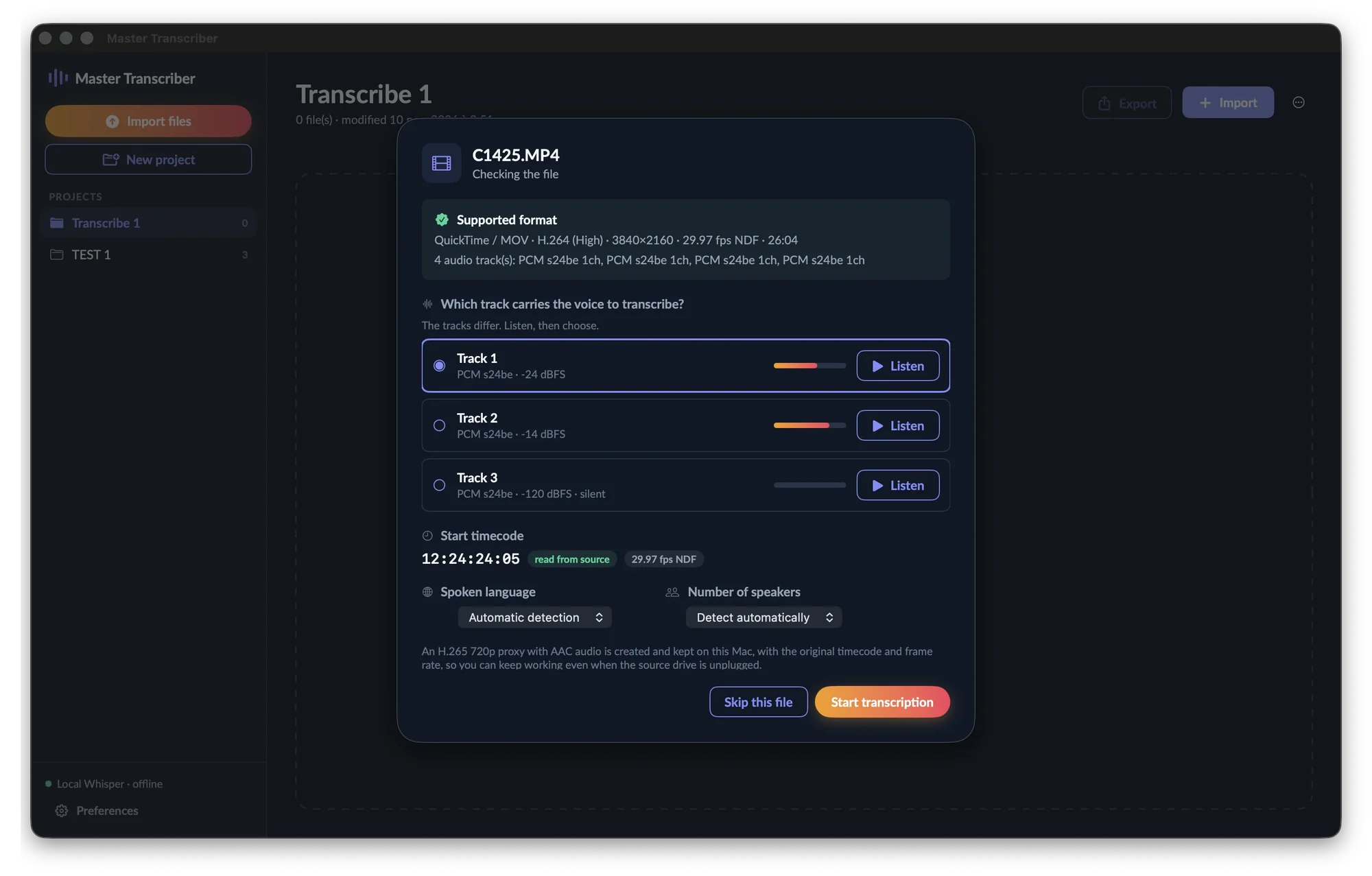
Import window for a 4K QuickTime file with four audio tracks, their levels and Listen buttons, the start timecode read from the source, and the language and speaker settings
Four audio tracks: listen, choose, transcribe.

An editor that follows the voice

  • During playback a line underlines the word being spoken. Click any word to jump there
  • J K L to shuttle at 2×, 4× or 8×, arrows to step frame by frame
  • Each paragraph shows its speaker and timecode. Click the label to change the speaker, and rename speakers once in the Speakers tab
  • Edit text (⌘E) to fix misheard words: corrected words keep their sync
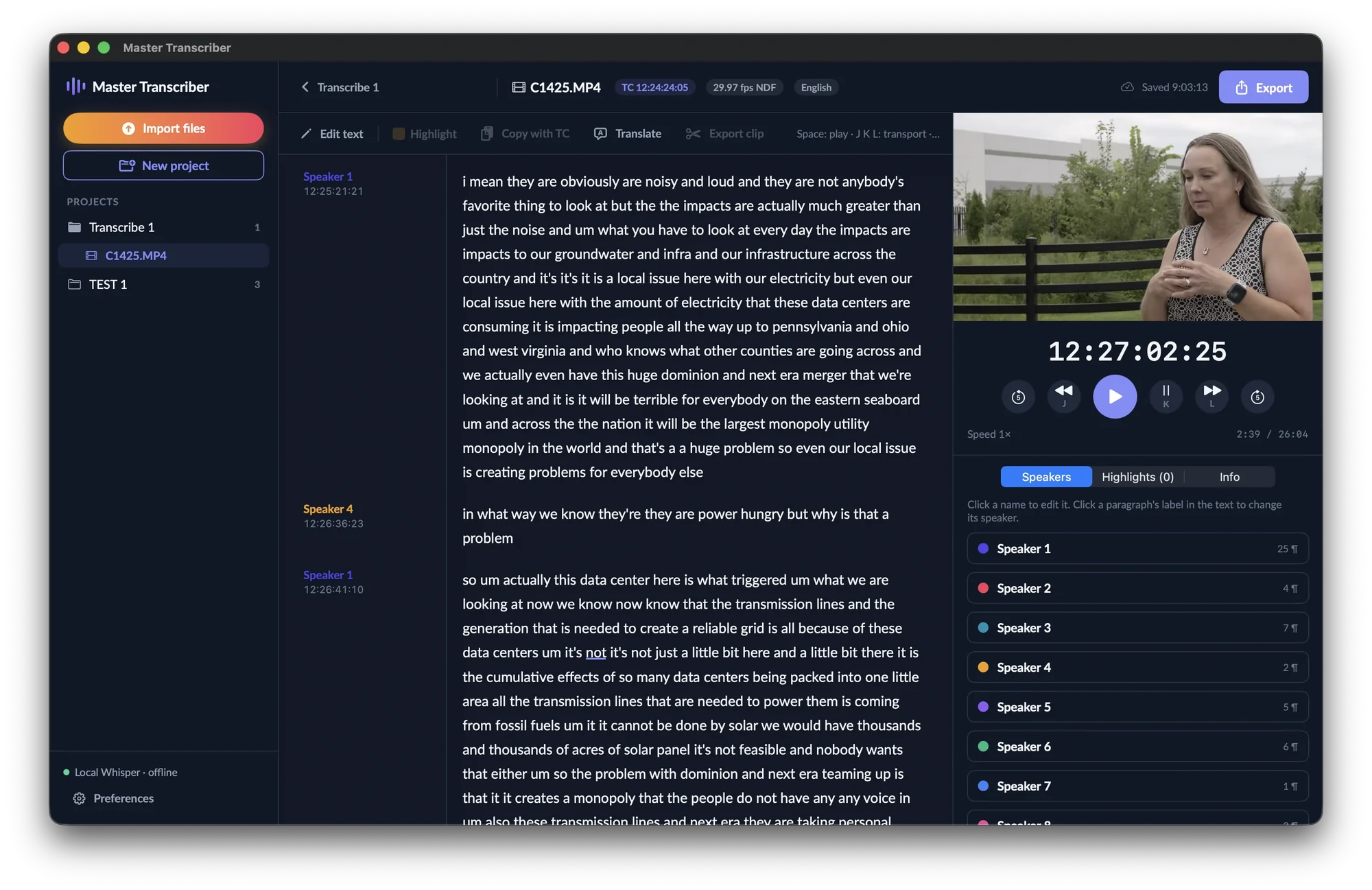
Editor with paragraphs labelled Speaker 1 and Speaker 4 with their timecodes, the video and transport on the right, and the Speakers tab listing eight speakers with their colours
Paragraphs split by speaker, each with its colour and source timecode.

Timecode

The source timecode, everywhere

The original timecode and frame rate are read from the file (tmcd track, MXF or BWF), from 23.976 to 60 fps, drop-frame or not. That timecode is the reference in the editor, the copies, the exports and the video clips.

Copy a quote with its timecode

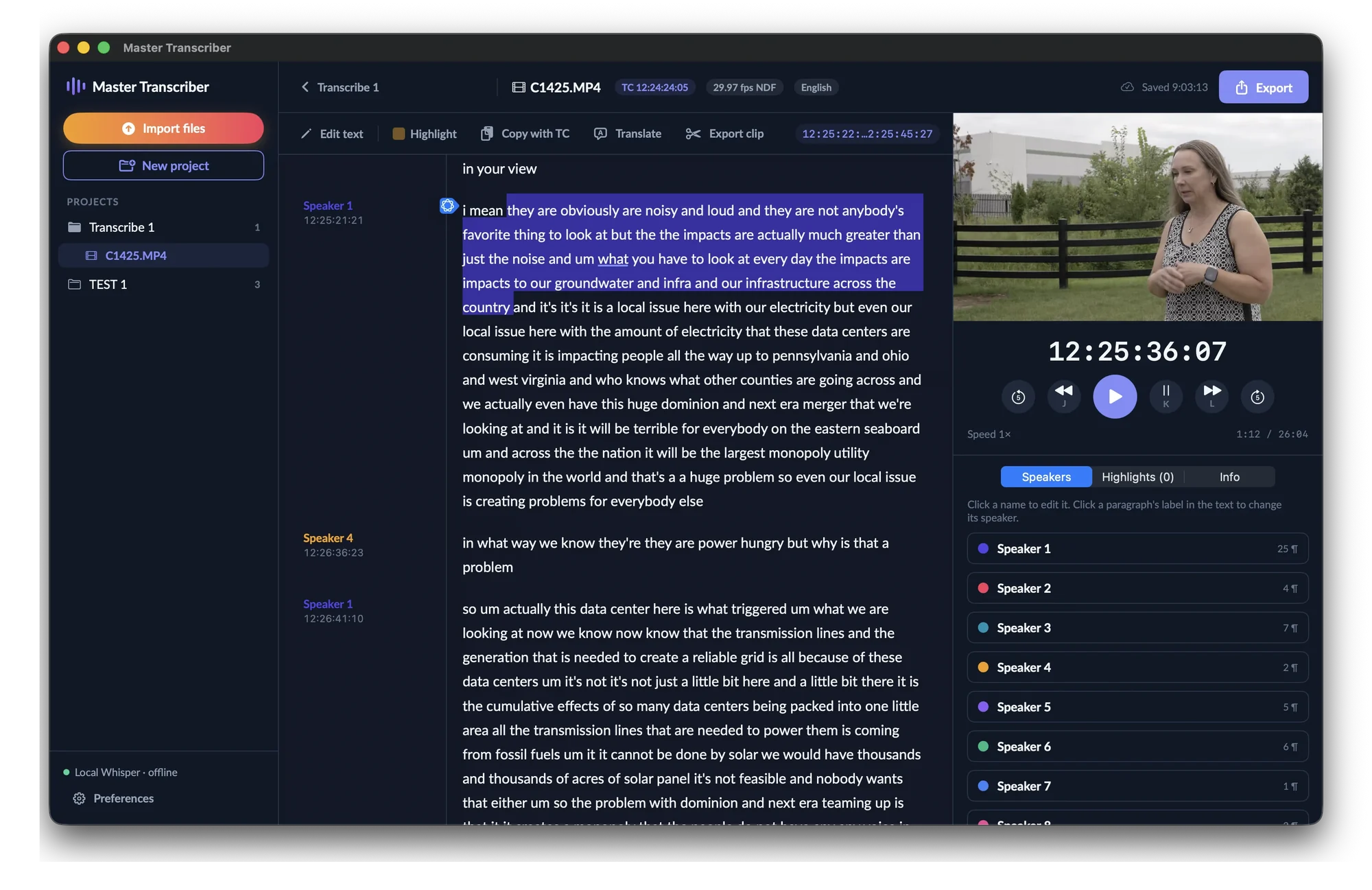
Select text and press ⌘C. The quote is copied with its start and end timecodes and the speaker’s name, and with its translation when there is one, ready to paste into your edit notes or script.

[12:25:22:10] Speaker 1 : they are obviously noisy and loud
and they are not anybody’s favorite thing to look at… [12:25:45:27]
Editor with a passage selected and the timecode range 12:25:22 to 12:25:45 shown in the toolbar
The selection’s timecode range is always shown in the toolbar.

Highlight the good bits

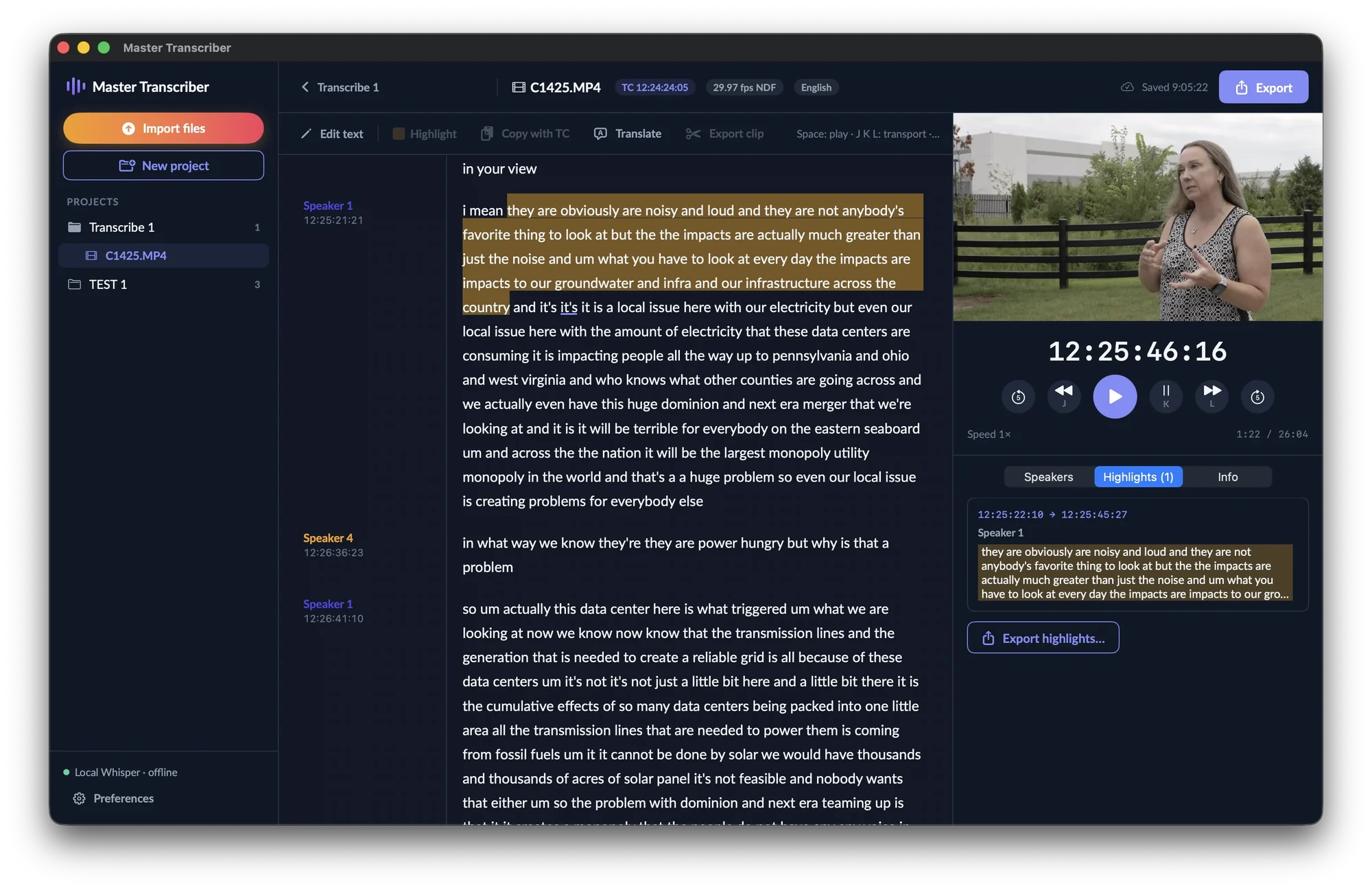
  • Select a passage and press ⇧⌘H: it turns yellow
  • Each highlight appears in the Highlights tab with its start and end timecodes. Click one to jump to it
  • Export the highlights back to back, with their translation
Editor with a highlighted passage in yellow and the Highlights tab showing it with its start and end timecodes
A highlight and its timecodes in the Highlights tab.

Translation

Read the interview in your language

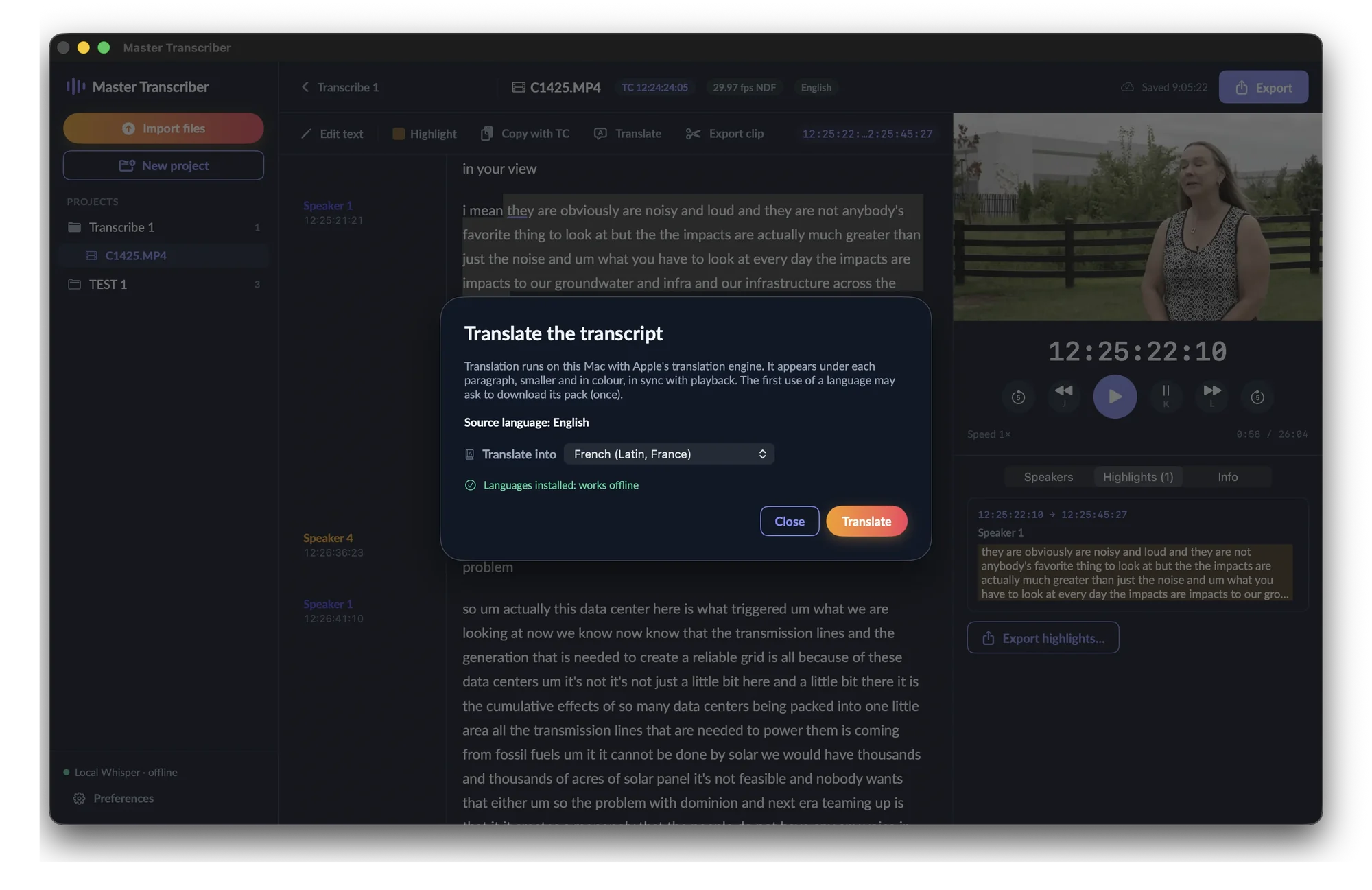
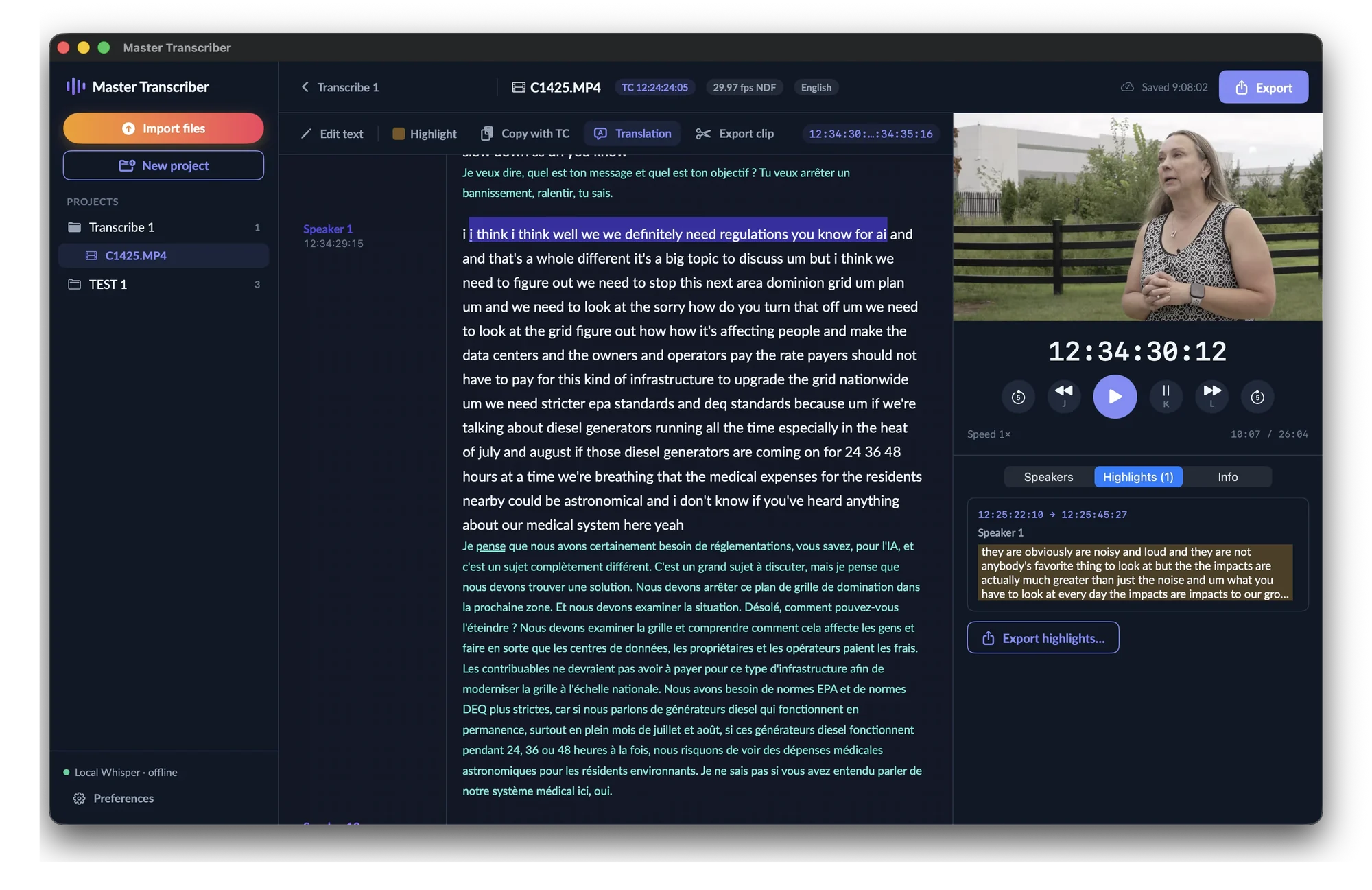
Translate the transcript with Apple's translation engine, right on your Mac. The translation sits under each paragraph, smaller and in colour, and follows playback.

  • Choose the target language. Installed languages work offline
  • Original and translation together: the spoken word is underlined in both
  • Protected from edits. After big corrections, translate again, or hide the translation
Translate the transcript window: source language English, translate into French, languages installed, works offline
Editor showing each English paragraph followed by its French translation in smaller green text
An English interview with its French translation, in sync with the video.

Export

From transcript to edit

Hand the text to a producer, the quotes to an editor, the clip to the edit suite.

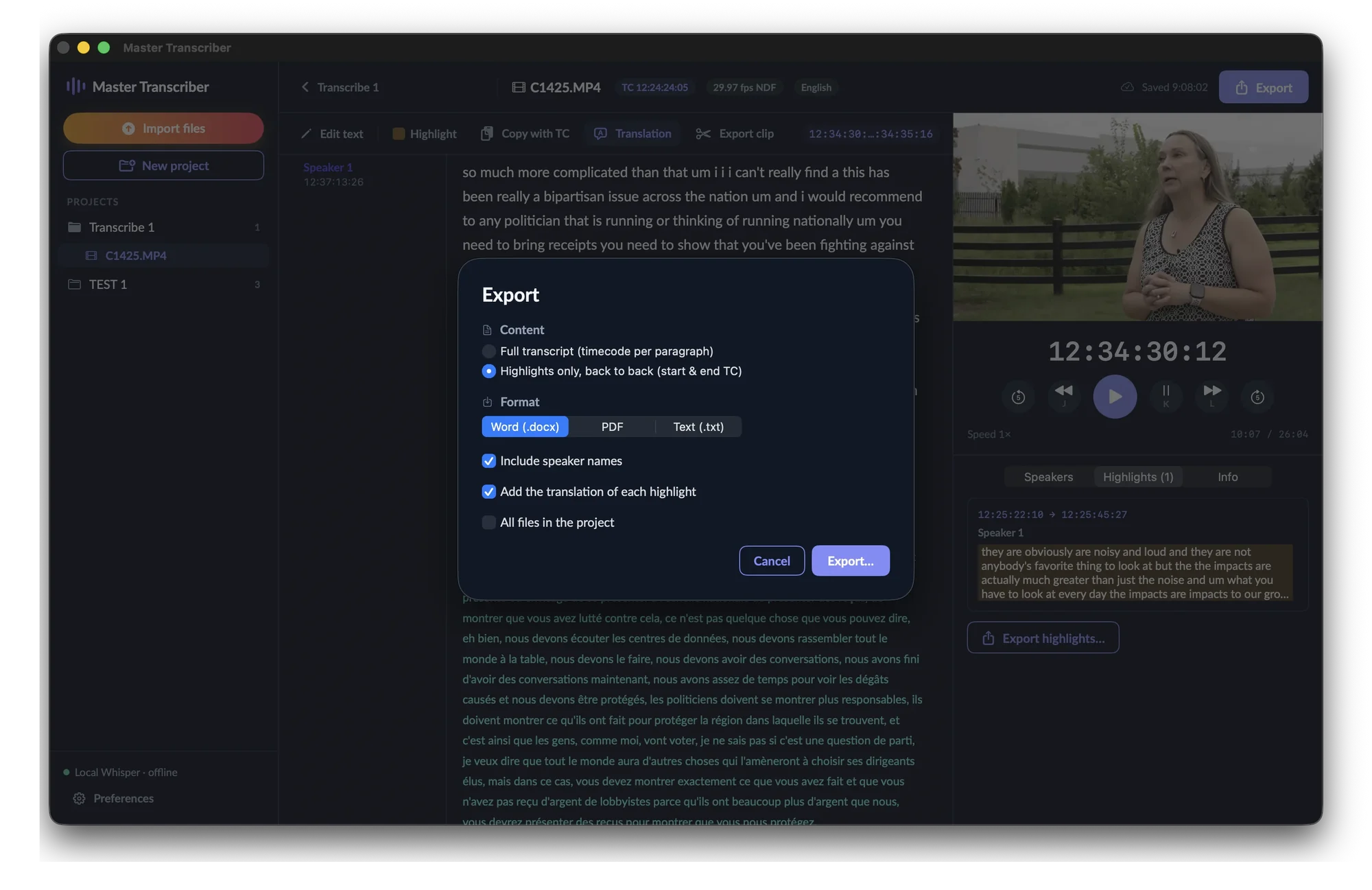
Word, PDF or text

  • The full transcript with each paragraph’s timecode, highlights in yellow
  • Or the highlights only, back to back, with start and end timecodes
  • Options: speaker names, translation, current file or the whole project. The file details go in the header
Export window with full transcript or highlights only, Word, PDF or text, and options for speaker names, translation and all files in the project

Export the clip, with burned-in timecode

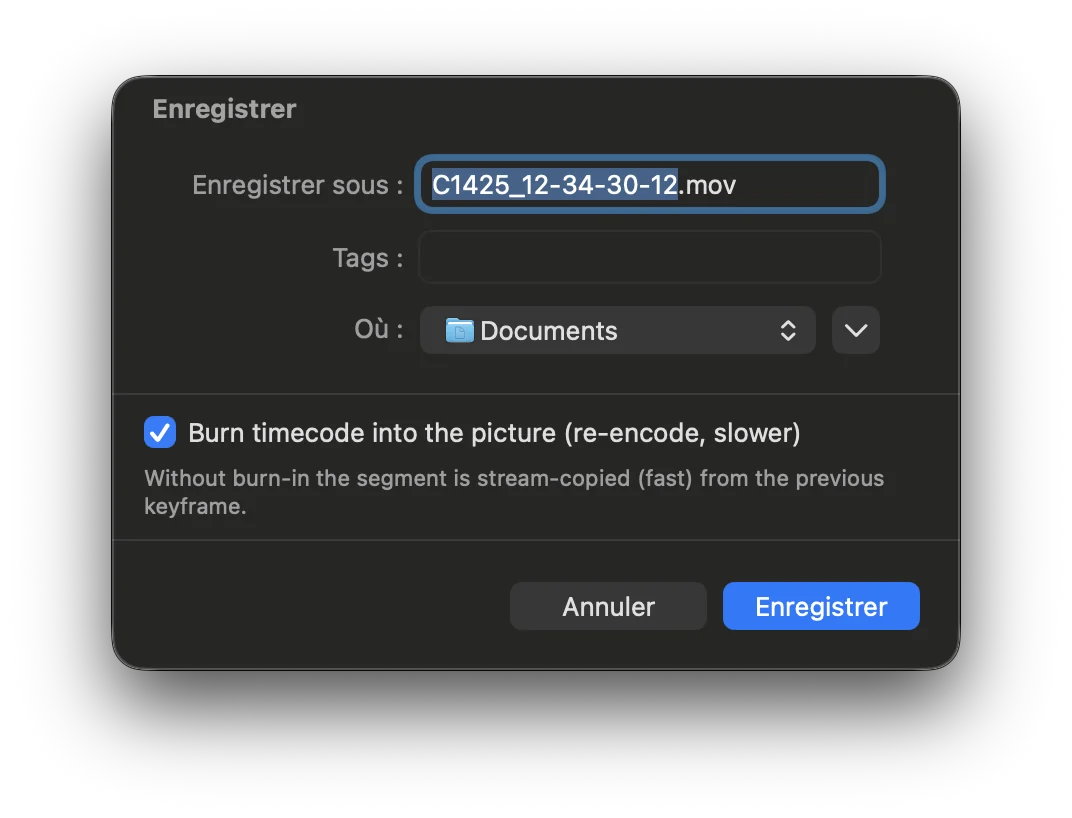
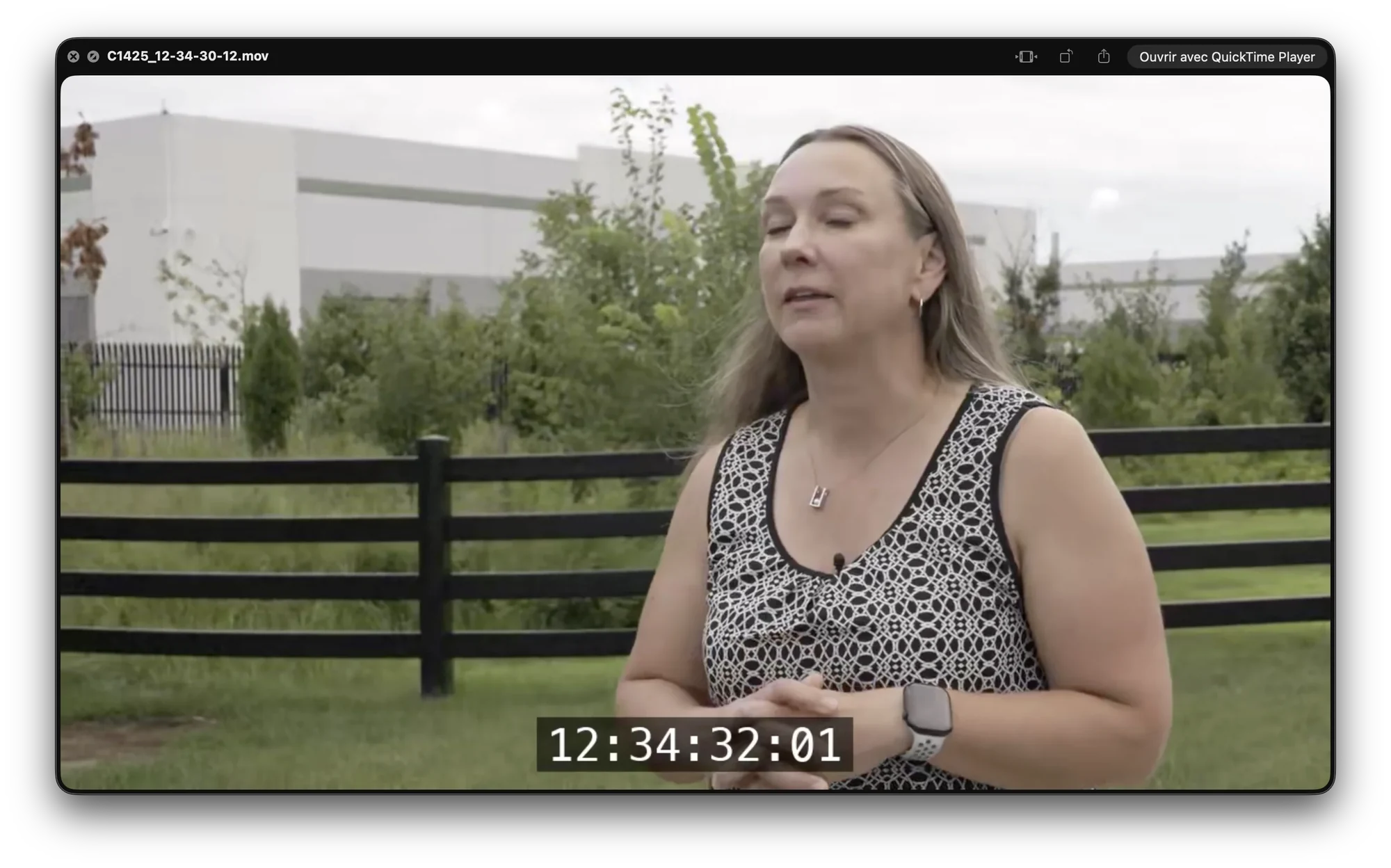
Select text and press ⌥⌘E. The segment is copied from the proxy without re-encoding, in seconds, with the right timecode. Tick Burn timecode to print it in the picture, frame-accurate.

Save dialog with the Burn timecode into the picture option ticked
Exported video clip playing with the timecode 12:34:32:01 burned into the picture
An exported clip with the source timecode burned in.

Models

Choose your Whisper model

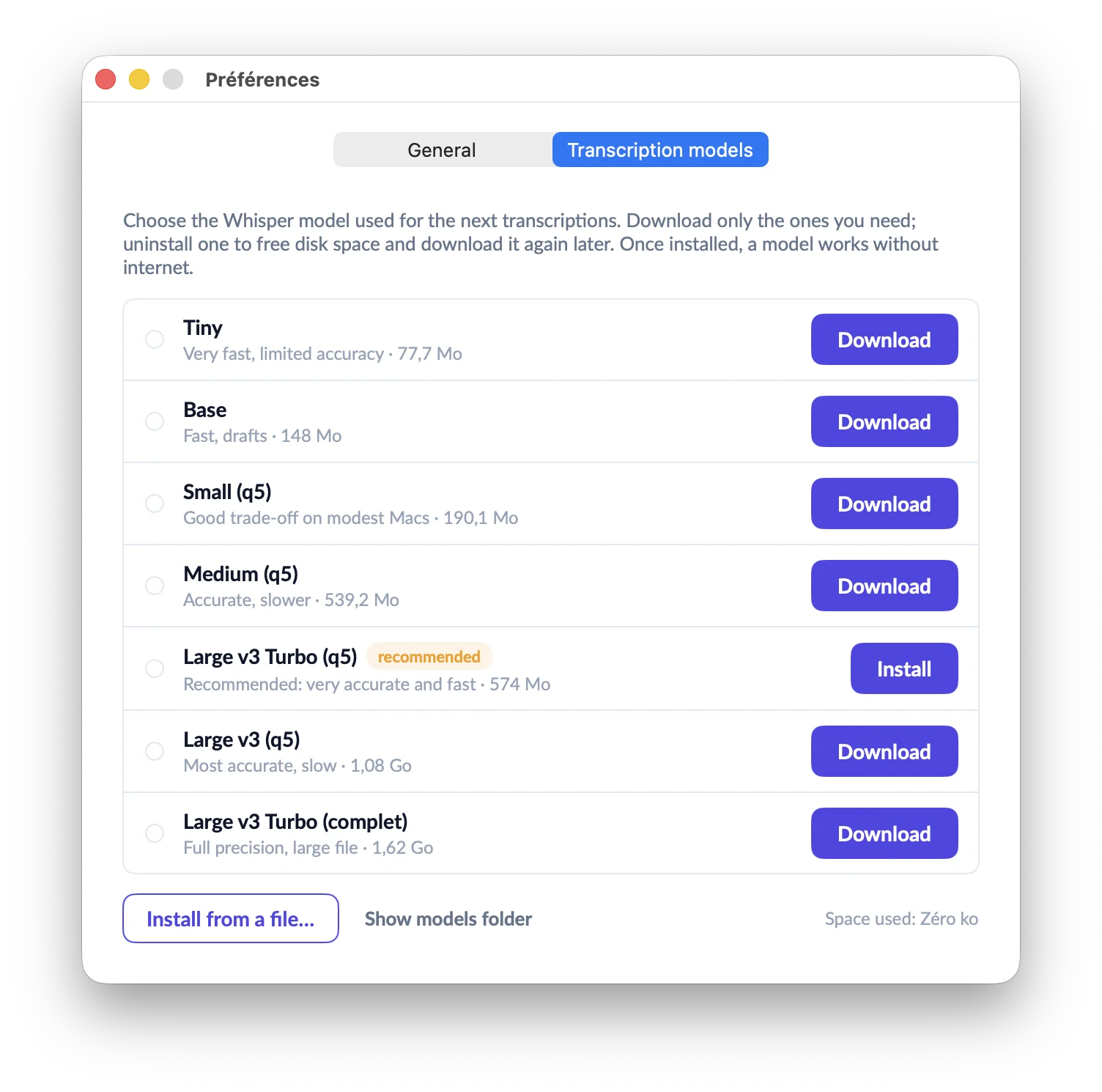
  • From Tiny (very fast) to Large v3 (most accurate). Large v3 Turbo (q5) is recommended: very accurate and fast
  • Download only the models you need, and uninstall one to free disk space
  • No network at all? Install from a file copied from another Mac
  • Interface in French or English, light or dark appearance, adjustable text size
Transcription models preferences listing Tiny, Base, Small, Medium, Large v3 Turbo (recommended), Large v3 and Large v3 Turbo full, with their sizes

Keyboard

Made for the keyboard

The shortcuts editors already know, so your hands stay on the keys.

Playback

  • Space Play / pause
  • J K L Reverse · pause · forward, 2× 4× 8×
  • ← → Frame by frame
  • ⌘← ⌘→ Back / forward 5 seconds

Editing

  • ⌘E Edit text
  • Esc Back to playback
  • Ctrl Space Play / pause while editing
  • ⇧⌘H Highlight

Copy and export

  • ⌘C Copy with timecode
  • ⇧⌘E Export text
  • ⌥⌘E Export clip
  • ⌥⌘T Translate

Projects

  • ⌘N New project
  • ⌘I Import files
  • ⌘O Open project
  • ⇧⌘W Close project

Download

Get Master Transcriber for Mac

Free. Open the disk image and drag Master Transcriber onto the Applications shortcut. The illustrated PDF manual, in French and English, is in the disk image too.

Download for macOS

On first launch, open File › Preferences › Transcription models and install a model. After that, everything works offline.

If macOS blocks the app the first time, open System Settings, then Privacy & Security, and click Open Anyway.

Details

Version
0.2 beta
System
macOS 15 Sequoia or later
Processor
Apple Silicon (M1 or later)
Size
108 MB (disk image)
Manual
PDF, French and English, included
Internet
Only to download a model, once
Price
Free
Works without internet

Built on whisper.cpp, OpenAI’s Whisper models, FFmpeg, sherpa-onnx, ONNX Runtime, pyannote and WeSpeaker. Full credits and licences are in the app.

Support

Buy me a coffee

Master Transcriber is made by one person. If the app saves you hours of typing, a small tip helps me keep improving it.

☕ Buy me a coffee

Contact

A question, a bug, an idea?

Write to me. I read every message.